 PairProof
Good work.
Clearly documented.
Keep Before and After photos together by area, catch missing shots, and create a client-ready PDF. Your reports and photos are stored on your device. No PairProof account is required.
Get PairProof on the App Store Before
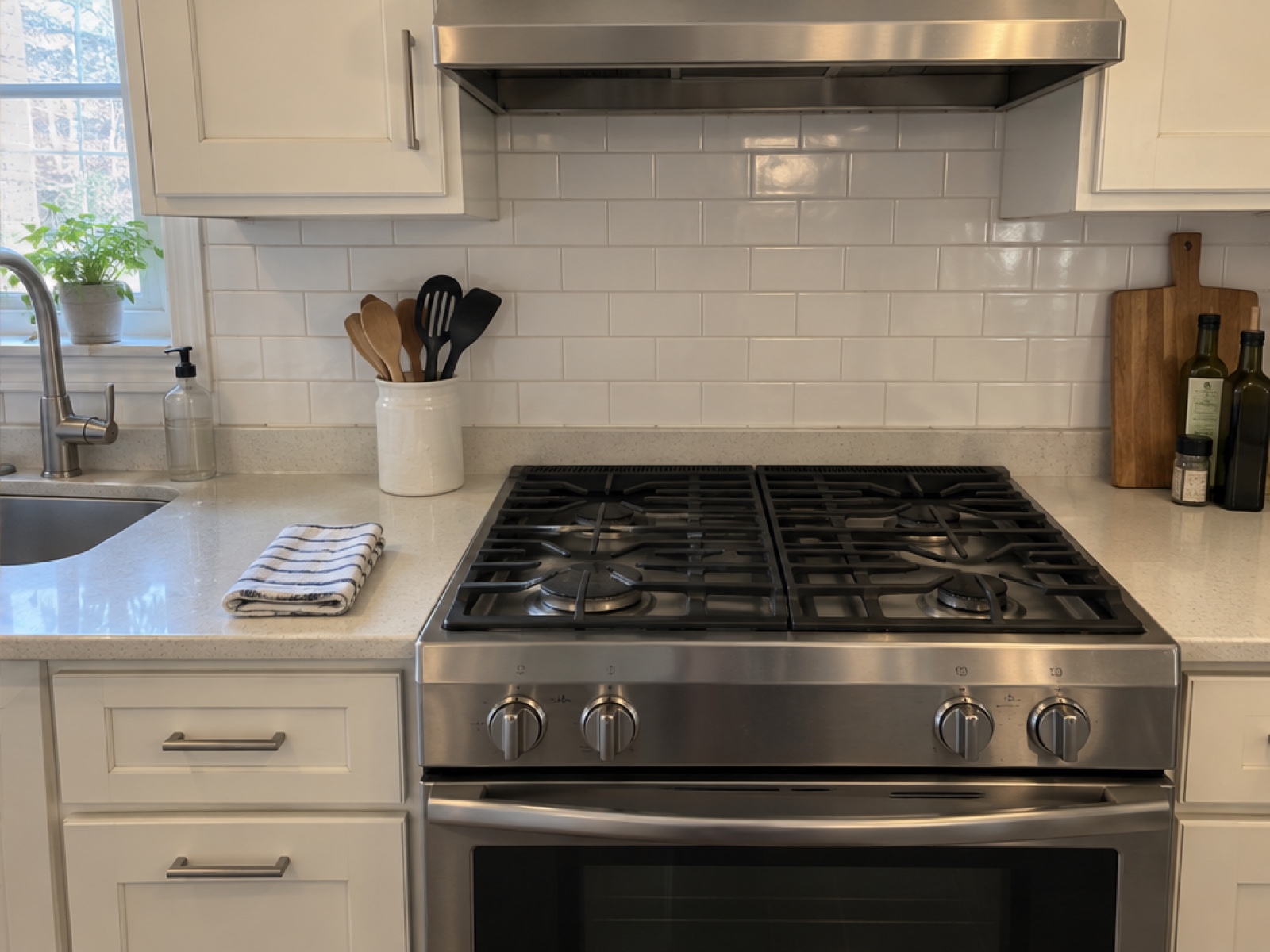 After
After
Start with 3 free reports.
The first 3 finalized reports are free. Drafts, previews and sample reports do not use the allowance. Deleting a report does not reset it.
In 1.3, PDF, photo-card and video exports use the same three-report allowance, rather than three separate allowances. Free PDFs include PairProof attribution and omit a custom logo; the business name and contact details remain. Free photo cards and videos include “Made with PairProof.” Version 1.0 free PDFs include the custom logo without PairProof attribution.
You confirm before a free report is finalized. The allowance is used when the completed output is ready to save or the Save/Share sheet opens, even if you then cancel that sheet. Unchanged finalized reports can be exported again without using another report. Make a copy or use paid access to edit a finalized report.
Choose a plan in your app.
Version 1.0: Unlimited is a one-time in-app purchase for unlimited local reports, edits and PDF exports.
Upcoming 1.3: PairProof Pro offers monthly, annual and lifetime options, subject to App Store availability. Pro includes unlimited PDF, photo-card and video exports, business-logo branding, removal of PairProof attribution, and the Ghost alignment camera.
Prices and any eligible introductory offers come from Apple. No fixed price or trial is promised here. Monthly and annual subscriptions renew automatically until canceled through Apple; the lifetime option is a one-time purchase.
Already bought Unlimited? Your original verified lifetime purchase includes the 1.3 Pro features without buying again. Restore with the Apple Account used for that purchase. Buying Lifetime does not cancel an existing subscription; manage that subscription separately with Apple.
What's planned for 1.3
- A clearer report workflow: a compact home screen, room-first photo editing, missing-photo guidance, and a redesigned PDF with a service summary and paired photos.
- Work-specific checklists: Cleaning, Auto detailing and Exterior services profiles, with editable presets and 1–30 rooms or work zones. Switching profiles keeps existing reports.
- Ghost alignment camera: Pro users can place the Before photo over the live camera preview as a guide for an After shot. The guide is not added to the captured photo.
- Photo cards and short videos: create square, portrait or vertical Before/After cards, or a 5-second vertical reveal video. Save or share through your device's native controls.
- Reusable property setups: save a property and checklist, then share its complete setup link or a QR code when the setup fits. Recipients review and confirm before starting a fresh report with empty photo slots.
- Apple offer-code redemption: redeem a code supplied by an eligible campaign through Apple. Availability and terms depend on the offer Apple returns; entering a code alone does not unlock access.
Help with your reports
Contact haowenapps@gmail.com for support. Include your device model, iOS version, app version and what happened. Please avoid sending client photos or personal details unless needed to resolve your question.
Email supportHow do I send feedback?
Choose Send feedback on the home screen or in Settings where available. Enter your reply email and message, then choose Submit feedback. Feedback goes to our support inbox through Formspree without requiring a configured mail app. Reports and photos are not attached.
How do I restore my purchase?
Open Purchase details or See details, then choose Restore purchases. Use the Apple Account that made the purchase. An original verified Unlimited purchase becomes Lifetime Pro in 1.3. Restoring purchases does not restore local reports or photos.
Why can't I export a report?
Every area needs a Before and an After photo for a complete PDF. Follow the missing-photo list to the relevant slot. A first free finalization also requires every area to be complete, even if you selected just one area for a 1.3 photo card or video. In 1.3, Pro can export selected completed areas while the rest of the report is still in progress.
After three finalized free reports, exporting a new report requires paid access. Unchanged finalized free reports remain exportable. If a finalized report was edited while Pro was active, its changed version may require active Pro or a new copy using an available free report.
How do I photograph the next visit?
Use Report actions → Next visit. It keeps the client, property and area layout, and starts with empty photo slots and work notes. In 1.3, saved properties and checklists can also be managed in Settings.
How does a shared property setup work? 1.3
Open Settings → Saved properties & checklists, choose a setup and use Share. Review the property name, address, trade, area names and default notes before sending. The link and QR are not encrypted. Anyone who receives them can read those fields. Photos, a separate client name, business branding and report history are not included.
The recipient installs PairProof, opens the link or scans the QR with their phone camera, and reviews the setup. Import & start report creates a new local report only after confirmation. Long setups can still be shared as a full link even when they do not fit a QR code.
Can I post a card or video without exposing client details? 1.3
Cards and videos leave out the client name, property address and work notes. They still show the selected photos and area name; cards also show the service date. Pro output can include your business name and logo. Inspect the result before sharing: photos, custom area names or your logo may contain personal information.
Where are my photos stored?
Reports and processed photos are stored in the app on your device. PairProof has no developer-hosted photo library or cross-device report sync. Saving or sharing sends the exported file to the destination you choose. Save important PDFs or other exports to Files or another safe destination before removing the app.
What if camera or Photos access was denied?
Open your device's Settings, find PairProof and allow Camera access to take photos. You can also choose existing images using the system Photos or Files picker. In 1.3, saving a video directly to Photos requests permission to add it; if denied, use Export and share video to save to Files instead.
How do I change or cancel a subscription? 1.3
Choose Manage subscriptions in Purchase details, or open Apple's subscription management. Apple displays the current plan, renewal and cancellation options. Your local reports remain on the device if Pro access ends.
Purchase and refund questions
Apple handles payments and refund requests. Visit Apple's Report a Problem for an App Store purchase. Review the price and terms in Apple's confirmation before accepting a purchase or offer.